
Start with one clear idea
A useful podcast clip gives a new viewer enough context to understand one point. It might be a practical answer, a short story, or a specific disagreement. It does not need to summarize the whole episode.
Before opening an editor, write down what the viewer should take away. For a hypothetical interview with a photographer, “how to prepare for a first client shoot” is a clearer target than “the best parts of the interview.” That target makes it easier to judge the clips AI suggests.
1. Import your video recording
Open Keyframe on iPhone or iPad and choose AI Clips. Use an available import option for your recording or a supported video link. Check the source, processing options, and credit estimate before submitting.
This guide assumes a video podcast, not just an audio file. Use a recording you own or have permission to repurpose. If a link cannot be accessed, a local copy you are authorized to use may be the more reliable starting point.
Clear speech and a stable picture give you a better source to review. If several speakers interrupt each other, expect to spend more time checking the transcript and whether the excerpt is understandable.
2. Review the generated clip candidates
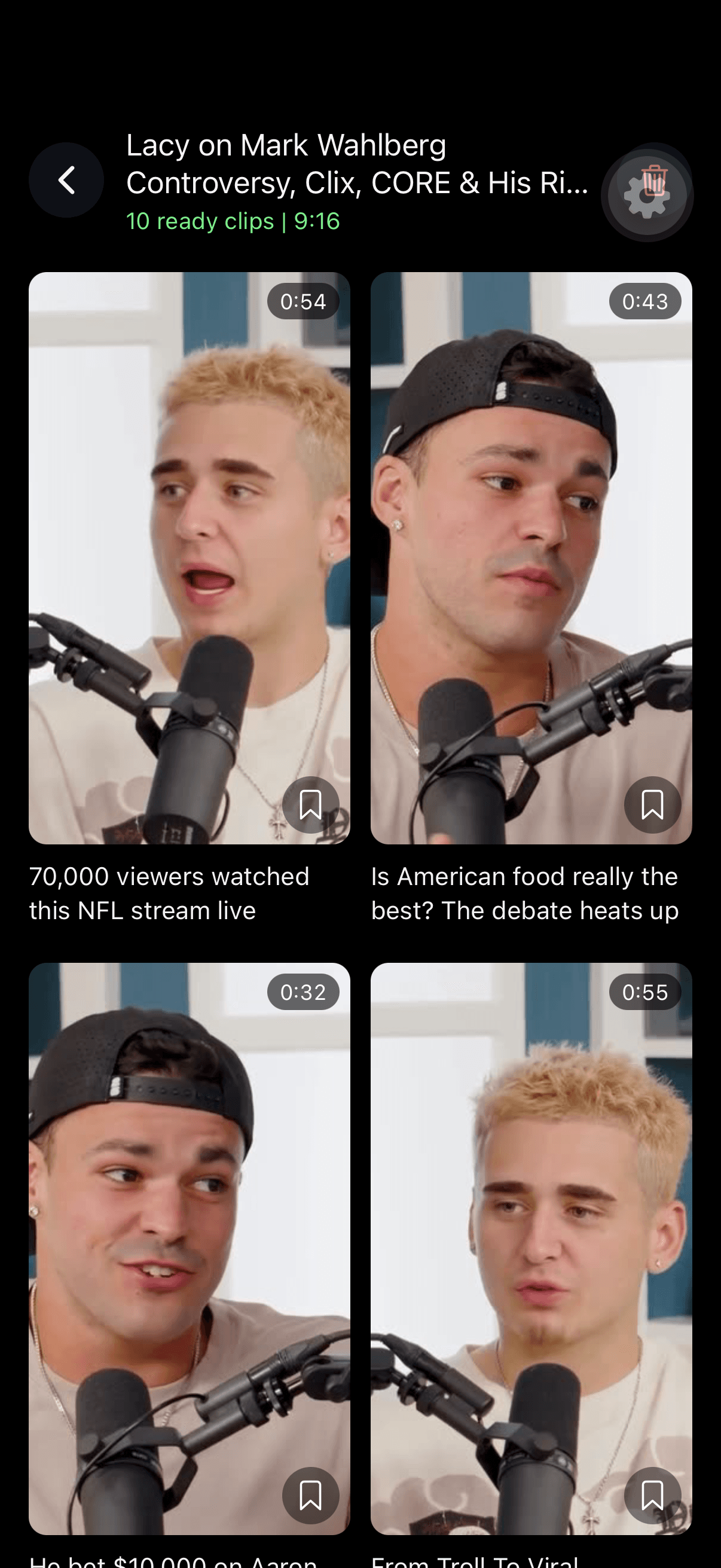
After processing, open the project and review the available clips. Treat the grid as a shortlist. A compelling title or a short duration is not enough to decide whether a moment works.
- Opening: can a viewer understand what the speaker is answering?
- Middle: does the clip stay with one idea?
- Ending: does it finish the thought instead of cutting off a qualification?
Listen to the surrounding conversation when the meaning is unclear. An answer beginning “That never works” may need the question to explain what “that” refers to. Choose another excerpt if the missing context cannot be communicated clearly.
3. Check framing and speaker changes
Play the clip all the way through. At each change of speaker, check that the relevant person or visual is visible. For a split-screen conversation, check both halves, including where captions will sit.
A landscape recording can contain details that are less obvious in a vertical crop. If someone points at a demonstration or a slide, make sure the viewer can still understand the explanation. A talking-head crop is not always the best candidate for a visually detailed answer.
4. Correct captions and add context
Open Edit clip from the selected clip. Review the caption text against the audio, paying special attention to guest names, company names, dates, and numbers. Then choose a readable font, style, and size.
A text overlay can introduce the topic without rewriting what the guest said. In the photographer example, “Preparing for your first client shoot” gives context while the spoken captions carry the actual answer. Keep the heading short enough to read without competing with the dialogue.
Use the caption editing checklist to review legibility and placement. Save your edits and preview the clip again.
5. Export, inspect, and publish deliberately
Export or share from the clip preview. Watch the resulting file with sound, then once with sound off. The first pass checks meaning and timing; the second reveals whether the captions and visual context are enough to follow the story.
In the destination app, check that its controls do not obscure important text. Add a post description that tells viewers what the excerpt covers and where to find the full episode. Do not imply that the guest endorses something they did not say.
For the next post, choose a different useful moment rather than another version of the same answer. Keep a simple record of the topic, published URL, and audience response. Use those observations to decide which kinds of moments to make next.
Already have a short excerpt?
If you have already made the selection, use Video Captions to caption that video instead of asking AI Clips to find highlights again. For the product overview and available workflow, visit podcast clips. Processing allowances and export access depend on the current plan and purchase terms.