
Separate the words from the look
Automatic captions are a starting point. Before changing a font or adding a heading, make sure the transcript says what the speaker actually said. A polished style cannot fix a wrong name or a missing “not.”
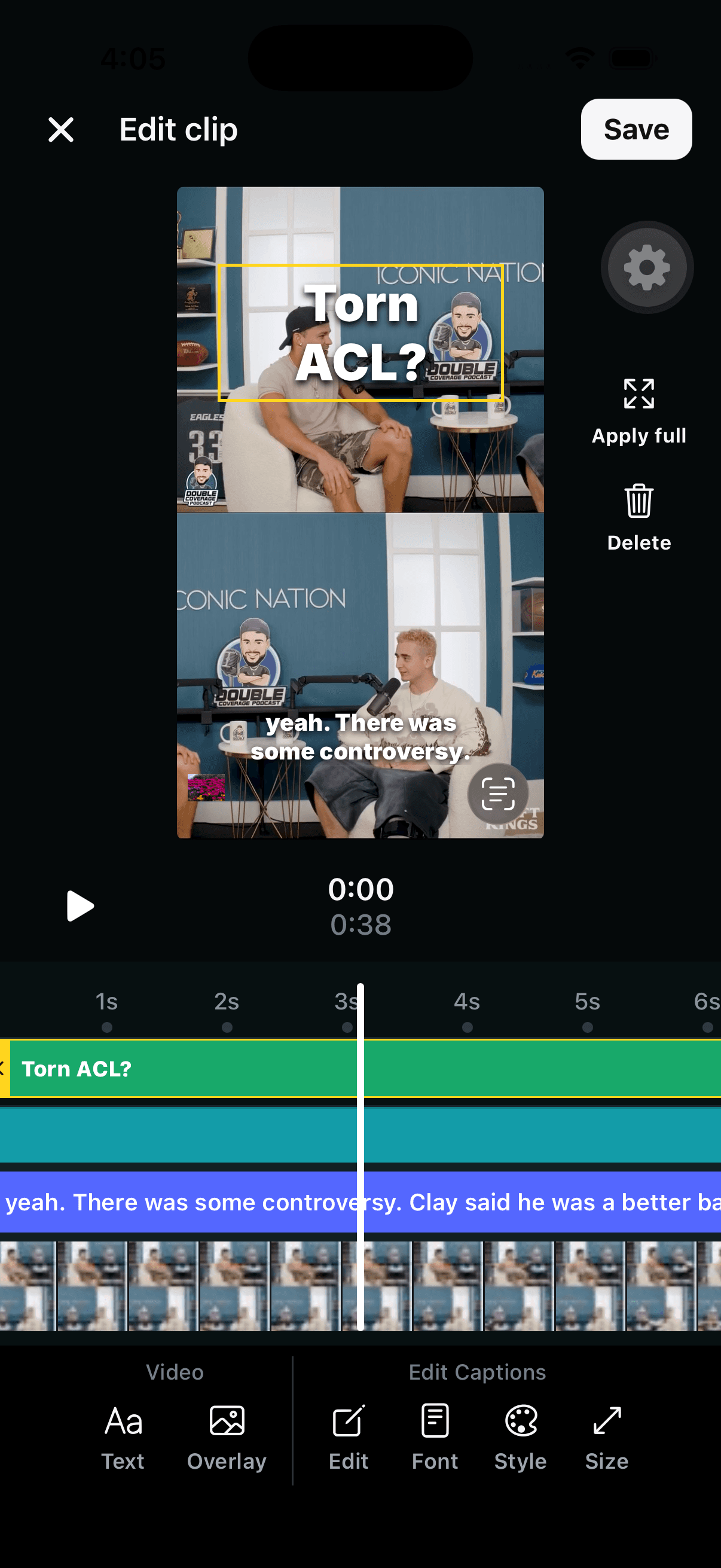
In Keyframe, you can review captions on an AI-generated clip or start a Video Captions project with a video you have already chosen. The editor provides controls for caption text, font, style, and size, alongside text and image overlays.
1. Open the clip and correct the transcript
For a generated clip, open its preview and choose Edit clip. Use the caption Edit control to review the words. Play the relevant audio as you work instead of correcting from memory.
- Check people’s names, product names, and specialist vocabulary.
- Verify numbers, dates, currencies, and units.
- Listen for short words that reverse a sentence’s meaning.
- Use punctuation to make the spoken thought easier to follow without changing it.
For example, if a hypothetical speaker says “fifteen minutes,” a caption reading “fifty minutes” needs a correction before any visual polish. If the audio is unclear, replay the surrounding sentence. Do not guess simply to make the text read smoothly.
2. Watch how the captions follow the audio
Replay the beginning, a middle passage, and the ending. Check that the words appear with the speech and that the viewer has time to read them. Pay extra attention after pauses and speaker changes.
Read the captions at normal playback speed. Pausing the video makes almost any text look readable; the real test is whether someone can follow it while listening and watching. If a passage is confusing, revisit the text and the clip itself before exporting.
3. Choose a font, style, and size for a phone screen
Use Font, Style, and Size to set the caption treatment. Start with legibility: distinguishable letter shapes, clear contrast, and enough space for the words. Then make the treatment feel consistent with your other posts.
Preview the busiest shot, not just the opening frame. White text may disappear against a white shirt or a bright window. Check how your chosen style separates the letters from the footage as the scene changes.
Position the captions away from important faces, hands, product details, and existing text. Leave space for the destination app’s interface. There is no single placement that works for every video and every platform, so inspect the actual upload preview too.
4. Use text and image overlays with a purpose
The Text control lets you add a heading or another short piece of context. The Overlay control lets you add an image. Keep these additions focused on helping the viewer understand the clip.
A heading such as “Three questions before you buy” can introduce an answer. A relevant image can illustrate an object the speaker mentions. An unrelated graphic is more likely to distract from the words than help explain them.
Review each element in the preview and timeline. Check whether the heading competes with the captions, whether an image covers the speaker, and whether the composition stays clear as the video plays.
5. Save and check the exported video
Save your edits and return to the preview. Watch the complete clip, then export or share. Inspect the exported file before posting; it is the file your audience will see.
Use two final passes. With sound on, check the transcript and timing. With sound off, check whether the words and visual context communicate the point. Add a clear post description in the social app rather than trying to fit every detail onto the video.
Captions are one part of an accessible viewing experience. If an essential action or visual detail is never spoken, captions of the dialogue alone will not explain it. Consider how your narration or accompanying description can provide that missing context.
Need to find the clip first?
Start with AI Clips for a longer recording. Our podcast-to-clips guide explains how to choose an excerpt before working on its captions. If you are comparing editors, see Keyframe Video vs. OpusClip.